Showing posts with label itunes. Show all posts

Tuesday, August 2, 2011

Ten Safari shortcuts you should know

Apple Safari iconImage via Wikipedia

Ten Safari shortcuts you should know


Source: macworld.com


While I like my Magic Trackpad, and the trackpad on my MacBook Air, I do as much as I can from the keyboard.


As such, I use LaunchBar () to launch applications, and have learned a number of essential iTunes shortcuts to save time when I work with my music collection.
I know dozens of shortcuts for the apps I use most.


Since it's easier to use the keyboard - no need to move my hand to my trackpad - I've memorized a handful of useful shortcuts for browsing the Web.
Here are ten that I think are essential. (These should work in both Snow Leopard and Lion unless otherwise noted.)

1. Quickly enter URLs

When I want to type a URL, I don't use a mouse or trackpad to click in the Address Bar, clear it, then type. Just press Command-L, and all the text in the Address Bar is selected, so whatever you type replaces it immediately. Start typing a URL for a favorite site, and Safari can auto-completes it by looking at your history or bookmarks. If Safari displays a list of sites, use the up- and down-arrow keys to choose the right one, and then press Return to go there.

2. Search in a snap

Like everyone, I search a lot using Google. Why click in the Google search field when you can go there by simply pressing Command-Option-F? Remember this shortcut, as it works in many Apple programs. Use it in Mail, iTunes, Address Book and more when you need to zip to the search field.

3. Hop to your history

There are times when I want to browse my History list to find a Web page I visited recently, but whose URL I can't remember. Pressing Command-Option-2 takes me to the History list, and puts the cursor in the search field. I can type a word or two and narrow down the display to find what I want. Double-clicking an entry in the History list takes me to that page, and pressing Command-Option-2 again takes me back to the previously visible Web page.

4. Scroll with the spacebar

When I get to my favorite Web page, I rarely bother to use scroll bars, or even my trackpad, to scroll. Just press the spacebar, and Safari scrolls down one screen. Need to go back up a screen? Press Shift-Spacebar. It's fast and efficient, and doesn't make me dizzy watching the page move up and down.

5. Open tabs in the background

Safari’s Tabs preferences show the shortcuts you can use to create new tabs. Go to Safari -> Preferences and click on Tabs to see these. The shortcut I use most is Command-Shift-click, which opens a new tab in the background. I use this a lot when I’m doing research on the Web and want to open several pages from search results without looking at them right away. Safari's tabbed browsing is a practical way to have several Web pages open at once without getting confused by multiple windows. IMAGE - SAFARI-TABS Safari's Tabs preferences let you choose how you want tabbed browsing to work, and show you the available keyboard shortcuts according to your settings.

6. Navigate your tabs

Use Command-Shift-Left Arrow or Right-Arrow will take you from one tab to the other. Just make sure that your cursor isn’t in a text field on any window displayed in a tab

7. Send a page (or its URL) to a friend

To email a neat Web page you’ve found to a friend.
  • Command-I does the trick; it takes the contents of the page and send it to the person in a new message in Mail, with the page’s title as the message subject.
  • Command-Shift-I Will just want to send a link

8. Save pages for later

New in Lion is Reading List, a sort of temporary bookmark list that you can use for pages you want to come back to and read later. If you press Command-Shift-D, you can add the current page to the Reading List.

9. Save links for later

The above Lion shortcut works when a page is visible. If you want to add a linked page to the Reading List - a page in search results, or a link, say, on the main page of macworld.com - just hold down the Shift key and click on that link

10. View Lion’s Reading List

To view the Reading List, you could click on the eyeglasses icon in the Bookmark Bar, if it was visible. Since we’re discussing keyboard shortcuts, however, instead you use the easier method of just pressing Command-Shift-L.


Concepts:

Mac, Shortcuts, Tabs, Safari, Command-L, Command-Option-2, Command-Option-F, Command-Option-2, Command-Shift-Click, Command-Shift-Left Arrow, Command-Shift-I, Right-Arrow, Command-Shift-D, Command-Shift-L, Lion, Macworld, Business, Accessories

Enhanced by Zemanta

Tuesday, June 14, 2011

How to Automatically Pause and Resume Music using AppleScript - Apple

Use AppleScript to Automatically Pause and Resume Music


Source: thenextweb.com

Here’s a tiny tutorial to achieve the same result as Take Five using AppleScript.
If you’re not too sure what AppleScript is, wikipedia explains:
AppleScript is a scripting language created by Apple Inc. and built into Macintosh operating systems, [...] designed to exchange data between and control other applications in order to automate repetitive tasks.
To put simply, it’s a scripting language with a syntax that very closely resembles the English language that lets you control most applications on your Mac. We’ll see that in a minute.
1. First, we need an app to invoke our AppleScript using a global shortcut. I personally recommend FastScripts — a little menubar utility for running AppleScripts, but you can also choose to use QuickSilver or Launchbar. Download and install any of these apps and proceed to the next step.
2. We need to write an AppleScript that will automatically pause iTunes and wait for X minutes before resuming playback again. Launch the AppleScript Editor app from your Utilities folder and create a new script with the following code:
if appIsRunning("iTunes") then
tell application "iTunes"
pause
delay 120
play
end tell
end if
on appIsRunning(appName)
tell application "System Events" to (name of processes) contains appName
end appIsRunning


The code has a delay of 120 seconds or 2 minutes by default, but you can change it to any value you like.
3. Save this script to Macintosh HD/Library/Scripts folder as itunes.scpt. Alternatively, you can click FasctScripts’ menubar icon to “Open Scripts Folder” under FasctScripts menu. Once saved, the script should automatically show up under the FastScript menu.
4. Go to FastScripts’ preferences and navigate to the “Script Shortcuts” tab to assign a global shortcut to this script. I personally use Cmd+Shift+P.
5. Fire up iTunes and start playing your favorite playlist. If and when you want to temporarily pause your music, just hit the global shortcut key you just assigned and the script will do its thing.
Unfortunately, the other popular music apps such as Spotify and Rdio do not support AppleScript natively i.e they do not answer to the pause/play or similar commands. For this reason, it isn’t easy to achieve the same functionality as you can for iTunes. While there is a way to write an AppleScript to do this, it’s not guaranteed to work for you. Here’s the code for Rdio:
if appIsRunning("Rdio") then
tell application "System Events"
tell application "Rdio" to activate
tell process "Rdio" to click menu item "Pause" of menu "Controls" of menu bar 1
   delay 10
tell process "Rdio" to click menu item "Play" of menu "Controls" of menu bar 1
end tell
end if
on appIsRunning(appName)
tell application "System Events" to (name of processes) contains appName
end appIsRunning


Hopefully, these apps will add AppleScript support in the future. Until then, I guess I’ll just have to manually resume playback.
The AppleScript for iTunes presently resumes playback at the set volume instead of fading in the music, so an improvement to the AppleScript would be to add the code to fade in the music after playback resumes. AppleScript can achieve some really complex tasks with a few lines of code, so I’ll definitely update this post.

Enhanced by Zemanta

Monday, February 28, 2011

Apple discontinues sale of MobileMe retail boxes as overhaul looms

Apple discontinues sale of MobileMe retail boxes as overhaul looms:


Source: appleinsider.com


"Apple on Thursday removed the $99 MobileMe product from its online store and notified resellers that it has discontinued the retail box for its cloud-based syncing product, suggesting the company is prepared to launch a rumored overhaul of the service.

 The MobileMe single license and family pack are no longer available on Apple's online store. In addition, resellers have indicated to AppleInsider that both the MobileMe Single User product (identified as MC660Z/A) and Family Pack (MC661Z/A) have been declared "End of Life" by Apple.

Users of MobileMe were also notified of scheduled maintenance for the me.com website. The service's Web-based applications may not be accessible to some users for about a half-hour tonight, after which normal service is expected to be restored.

The changes come as Apple is rumored to be revamping the MobileMe service, and is also said to be considering making the product free. The New York Times reported this month that Apple plans to turn MobileMe into a free service that would serve as a digital "locker" where users could store photos, music and videos.

Apple has been rumored to be pursuing a cloud-based iTunes service, particularly for music streaming, for years. The Times said that such a move would negate the need for a large amount of local storage on mobile devices like the iPhone.
-----------------------------
Enhanced by Zemanta

Friday, February 25, 2011

Drift Off to Sleep With iTunes & New Sleepytime 1.1.2

iTunes IconImage via Wikipedia

Source: macworld.com


Have you ever wanted to listen to music as you drift off to sleep, and have the music turn itself off after you've made it to the land of Nod?
Most clock radios can do this, of course, but if you want to play music from your Mac until you fall asleep, it's more complicated.
Simplifying this process is the idea behind Sleepytime (Mac App Store link), a nifty application that can rock you to sleep with your favorite tunes.
Fire up iTunes and start playing whatever you want to listen to, and then launch Sleepytime.
Choose how long you want iTunes to play (in minutes, hours, or even days), as well as the duration of the fadeout that occurs after that time (in seconds or minutes).
Finally, you can opt to have Sleepytime display a soothing black backdrop with track information while iTunes plays.
Set a time to wake up, choose a playlist, and decide whether you want the "alarm" to start at full volume immediately or to fade in so you won't be jolted awake by the sudden sound.


Enhanced by Zemanta

Wednesday, January 12, 2011

Apple’s Mac App Store Opens for Business

App StoreImage via WikipediaApple’s Mac App Store Opens for Business
http://www.apple.com/pr/library/2011/01/06macappstore.html

Apple’s Mac App Store Opens for Business

The Mac App Store brings the revolutionary App Store experience to the Mac, so you can find great new apps, buy them using your iTunes® account, download and install them in just one step.

The Mac App Store is available for Snow Leopard® users through Software Update as part of Mac OS® X v10.6.6.

"With more than 1,000 apps, the Mac App Store is off to a great start," said Steve Jobs, Apple's CEO. "We think users are going to love this innovative new way to discover and buy their favorite apps."

The Mac App Store offers apps in Education, Games, Graphics & Design, Lifestyle, Productivity, Utilities and other categories.

Users can browse new and noteworthy apps, find out what's hot, see staff favorites, search categories and look up top charts for paid and free apps, as well as user ratings and reviews.

Entirely new apps, as well as current Mac favorites, are available from developers such as Autodesk, Ancestry.com and Boinx.

"We're delighted to bring our professional-grade paint and drawing app, Autodesk SketchBook Pro, to the Mac App Store on its first day of launch," said Carl Bass, Autodesk's CEO. "We've seen tremendous success on the Mac, iPhone and iPad with multiple apps.

We're excited to offer SketchBook Pro on the Mac App Store so artists can easily create everything from quick sketches to high-quality artwork right on their Macs."

"By offering the Ancestry.com Family Tree Maker app on the Mac App Store, we're making it even easier for people to discover and access their family history," said Tim Sullivan, Ancestry.com's CEO. "The Mac App Store will drive a new generation of innovation on the Mac platform."

"We're thrilled to have our award-winning animation, video production and photography software available on the new Mac App Store," said Oliver Breidenbach, Boinx Software's CEO. "The Mac App Store makes it easier than ever for consumers to access all the innovative software designed for the Mac."

To get the Mac App Store, download the Mac OS X v10.6.6 Software Update or visit www.apple.com/mac/app-store.

Apple designs Macs, the best personal computers in the world, along with OS X, iLife, iWork, and professional software.

Apple leads the digital music revolution with its iPods and iTunes online store.

Apple is reinventing the mobile phone with its revolutionary iPhone and App Store, and has recently introduced its magical iPad which is defining the future of mobile media and computing devices.
To get the Mac App Store, download the Mac OS X v10.6.6 Software Update or visit www.apple.com/mac/app-store. To find out more about developing for the Mac App Store visit developer.apple.com/programs/mac.

Apple designs Macs, the best personal computers in the world, along with OS X, iLife, iWork, and professional software. Apple leads the digital music revolution with its iPods and iTunes online store. Apple is reinventing the mobile phone with its revolutionary iPhone and App Store, and has recently introduced its magical iPad which is defining the future of mobile media and computing devices.
Enhanced by Zemanta

Tuesday, November 30, 2010

What are the benefits of an iPad over a netbook or an iPhone?

Comparison between the iPad and iPod Touch's Keyboard.
The keyboard on the iPad is nice but can be a bit awkward due
to the size of the iPad.

Comparison between the iPad and iPod Touch's K...Image via Wikipedia

Source: makeuseof.com

What are the benefits of an iPad over a netbook or an iPhone?

Cassandra G asks:


I’m not being facetious, but what exactly is the point of the iPad? Why not get a netbook or an iPhone?

My partner wants an iPad and *I* want justification for spending this amount of money!

Many thanks.


Ceatif Diva 4 days ago


It appears from the comments to your question those who do not have an iPad have little good to say about then. But those who own one and have taken the time to learn what they can do, wouldn't be without them. I had a PC laptop and it never met my expectations, my iPad has exceeded them.


nancy 6 days ago


As far as iPad vs. Netbook is concerned - I own both. I bought my netbook about a year ago and have used it maybe two or three times at most - and got quite frustrated while using it. I got the iPad about a month ago and I've used it on a daily basis. Some people might say that they need a physical keyboard but honestly most netbook's keyboards are a lot more difficult to use than the iPad's onscreen keyboard. Other than that, it's such a sleek device and there's no end to how you can use it because of the variety of apps that are available.

Put the iPad together with the camera connection kit and you'll never have to travel with a laptop again imho.

Compared to the iPhone is another story - it really depends on what your needs are. With the iPad itself there's the choice of 3G or WiFi.

And then in comparison it to the iPhone - do you want a camera? Do you want to use it to listen to music in your car? If that's the case - go for the iPhone instead. But if you want to watch movies, play games, send emails, read ebooks and even blog (to a certain extent) - go for the iPad. You don't have to convert .avi files if you use a free app like VLC, you can watch flash videos using the paid app Skyfire, and there is multitasking with the new OS that was just released.

I'm a huge fan of the iPad - despite the fact that my first impression of it was that it was just an oversized iPod Touch. Your partner is going for the good stuff!


Saikat Basu - 1 week ago


Well, firstly the iPad is the beauty to the Netbook's beast.

Secondly, the iPad (and iPhone) is more of a multimedia device that's great for video, web browsing, or social networking with email.

The Netbook on the other hand is more functional. It's just like a laptop only smaller. You can video char, type in long documents and work with lighter apps that don't strain the CPU too much (serious graphic software would be a no-no).

From what I have hear, it's more difficult to type on iPad's on-screen touch keyboard than it is on a netbook.

You cannot really compare these three on a one-to-one basis.Your choice will boil down to what you ultimately plan to do on any of these devices.


Mike said 1Week ago

Well as for the iPhone most common reasons are the price, the screen size and simply that it's a mobile phone.

The iPhone 4 will cost you more money than the iPad WiFi.
- iPhone 4 32GB with contract ~299$ + smallest package ~15$ * 24 Months = ~659$
- iPhone 4 32GB without contract ~700$
- iPad WiFi 32GB ~600$
The screen size of the iPad makes a lot of things more comfortable ~ movies, eBooks/pdfs and webpages (there are lot of webpages not optimized for mobile devices)... for example a friend of mine is using it for reading newspapers and as a cookbook in the kitchen, two things where the iPhones' screen size will hit it's limits regarding usability.

As for netbooks there is probably lot of room for discussion.
My personal points would be:
~ Touchscreen
easier and more comfortable to use than keyboard and trackpad
imagine holding your netbook with one hand, and type with the other *no-fun*

~ Screen size
while all Apps are made for iPhone/iPad screens most Software is not for Netbooks
if you ever run Outlook or Excel on a Netbook you will know what I mean

~ ease of use
A Netbook basically is a mobile PC with "low end hardware". You don't have to be a rocket scientist but sooner or later you will run into the same Windows/Linux challenges and problems.
Solving those without losing data and settings is the same pain as on a PC. For an iPad it's like 2 clicks ~ restore to factory defaults, restore backup which is automatically created by iTunes.

~ Security, Malware and compatibility
On an iPad you don't really have to worry about that (except for it being stolen, which is the same for all and any devices). Apple does all the testing and stuff before Apps get into the App Store.

I did buy a netbook about a year ago and all I have done so far is testing out a few Linux distros... it's small and bulky, the power adapter is huge and when leaving the optical drive at home I could also leave the whole thing because my iPhone (or for that matter an iPad) can do the very same things.


Read more of this discussion at makeuseof.com/answers
Enhanced by Zemanta

Thursday, November 25, 2010

Sparrow for Gmail 1.0b5 Review

MailplaneImage by blogjunkie via Flickr

Source: Macworld


Promising Prospect: Sparrow for Gmail

Sparrow for Gmail 1.0b5 Review

By Dan Frakes, Macworld.com - November 17, 2010

One of the drawbacks of Google’s Gmail e-mail service is that the Website’s interface lacks some of the nice features of a dedicated e-mail client. For example, clicking an e-mail link in a Web page or a document doesn’t open a new Gmail message window, and you can’t drag a document to an icon in the Dock to attach the file to a new message. You can configure an e-mail client such as OS X’s Mail to access your Gmail account via IMAP, but Gmail’s approach to message organization doesn’t always work well with an IMAP e-mail client—plus you lose out on some of Gmail’s popular features, such as labels.

An alternative is an e-mail client specifically made for Gmail. I previously covered Mailplane, which takes a Web-page view of Gmail and wraps it in an application shell. The benefit of Mailplane is that, within Mailplane’s window, Gmail still looks like Gmail—if you like the way the Gmail Website works, Mailplane preserves that interface.

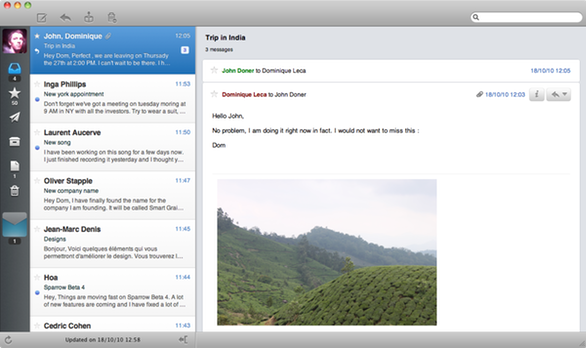
If, on the other hand, you prefer the features and interface of a traditional e-mail client, a promising alternative is Sparrow, a Gmail client currently in beta. At first glance, Sparrow looks a lot like Tweetie for Mac, with your account icon on the left, and below it icons for your Inbox, Starred mail, Sent mail, labels, Drafts, and Trash. If you’ve got multiple Gmail accounts configured, each account’s icon appears in the list; clicking an account icon “expands” that account—again, Tweetie-style—to display the icons for that account’s various views, while collapsing other accounts.

(Image courtesy of sparrowmailapp.com)

Click any view’s icon to display a list of corresponding message to the right. Double-click a message to view it in a separate window, or, if you’ve chosen to show Sparrow’s preview pane, simply select a message to display it to the right of the message list.

You work with messages much as you would in Mail. Sparrow even uses OS X’s Address Book, auto-filling contacts as you type them into the recipient fields of messages. But unlike Mail, Sparrow supports Gmail-specific features such as labeling, archiving, and starring messages. You can also set up aliases so, for example, you can use a different From address than your primary Gmail e-mail address, and you can view message conversations in an interface that looks more like Gmail than Mail. The program also provides audible and Growl alerts when new mail arrives.

As I mentioned, Sparrow is currently in beta, and it shows: In testing the current pre-release version, I regularly had to quit and relaunch the program to get it to load new messages; the preview pane didn’t always show attachments; and resizing the main window occasionally resulted in onscreen artifacts. But I’m looking forward to updates, as Sparrow has lots of potential for fans of Gmail.

Enhanced by Zemanta

Saturday, October 30, 2010

PowerTunes 1.1.3 - an alternative to iTunes

iTunes IconImage via Wikipedia

PowerTunes 1.1.3 Music and Audio Software Review


Source: macworld.com
By Dan Frakes, Macworld.com - October 19, 2010

A few years back, I covered iPhoto Library Manager, a great utility that lets you easily manage - and even transfer photos and albums between - multiple iPhoto Libraries.
For many of the same reasons you might want more than one iPhoto Library - keeping the size of each reasonable for better performance, or keeping work and personal stuff separate, for example - some iTunes users keep multiple media libraries.
iTunes provides rudimentary support for multiple media libraries: If you hold down the option key at launch, iTunes will ask you which library to use (or let you create a new one).
But that's the extent of the built-in capabilities - if you want to move a playlist from one library to another, for example, you must do so manually, and you'll lose custom metadata in the process.
A better alternative is to use PowerTunes, the iTunes-focused sibling of iPhoto Library Manager.
From within the PowerTunes window, you can create as many new iTunes libraries - or add as many existing libraries - as you like, each with its own media and settings.
When creating a new library, you choose where to store the library folder and files, as well as where to store the library's actual media - in a new media folder, in the same media folder as one of your other libraries, in another (non-iTunes) media folder, or in a "shared" media folder (more on that in a bit).
A library's media folder can be on your startup drive, on another connected drive, or even on a network drive.
Once you've got multiple libraries set up, PowerTunes offers a number of simple ways to switch between them.
Whichever method you use to choose a library, PowerTunes then quits iTunes and relaunches it with the chosen library active.
For example, the utility makes it easy to copy playlists from one library to another, bringing along play counts, ratings, EQ presets, and other metadata.
(The only metadata that isn't retained for each track is the Date Added field.)
You simply select the source library (the one in which the playlist currently resides) to view its playlists, and then drag the desired playlist to the destination library (the one to which you want to copy the playlist).
PowerTunes spends some time getting information about the tracks in the playlist - for a playlist of just over 1,000 tracks, this took about five minutes on a 2010 Mac mini - and then begins the copy process.
I found this feature especially useful when transferring just a subset of my desktop Mac's huge iTunes library onto my MacBook's smaller hard drive.
 Using PowerTunes to copy a playlist from one iTunes library to another

You can copy individual tracks between libraries using the same drag-and-drop procedure - libraries are even spring-loaded, so holding tracks over a library for a second or so displays that library's playlists, letting you copy tracks directly to a particular playlist.
PowerTunes also provides an iTunes-like search field for locating tracks - this feature is especially useful because it lets you search the libraries that aren't currently open in iTunes.
You can also duplicate an existing library if, say, you want to use an existing library as a starting point for a new library.
(This option doesn't duplicate your media - the new and existing libraries share the same media folder.)
PowerTunes also provides a number of sought-after features for managing libraries and the media within them.
For example, the program makes it simple to move your media to a different location, or even to a different drive, and you can also merge two libraries into a single library.
The latter feature is useful if, say, you and your spouse have been maintaining separate libraries and you decide you want to put everything together - the advantage to using PowerTunes over manually importing media from one library to another is, again, that PowerTunes maintains metadata.
(One limitation here is that, because of a limitation in iTunes, PowerTunes can't transfer podcasts from one library to another. The developer provides instructions for transferring podcasts manually.)
If you've ever seen the dreaded exclamation-point icon next to a track in iTunes, you know it means that iTunes can't find that track.
PowerTunes includes a Fix Dead Tracks command that displays a list of every "dead" track in the selected iTunes library.
Select one, and PowerTunes displays a list of possible matches on your hard drive, compiled via a Spotlight search.
If the correct media file is listed, just select it and click Fix Track.
If an entire album is dead, the Fix Multiple Tracks command lets you choose all of the album's tracks and fix them all at once.
This feature worked well in my testing, although it still requires you to go through the list of dead tracks one at a time (or at least one album's worth at a time).
The other drawback to this feature is that, because of the way iTunes checks for dead tracks, after each fix PowerTunes must quit iTunes and relaunch it - a procedure that can get tiresome if you're fixing many tracks.
This feature scans the selected media folder and looks for such "orphans," displaying them in a list.
You can then select individual tracks or albums and choose to either add them to your library or move them to the Trash.
PowerTunes also includes two ways to share iTunes libraries between multiple user accounts.
The first configures a library's media folder, using ACLs, so multiple users can access that folder.
The second also shares the library folder itself, so that multiple people can use the same playlists, ratings, and the like.
(If you opt for the latter approach, be sure not to have iTunes running in more than one account at the same time.)
If you're the type to be concerned about a utility performing these kinds of tweaks to your iTunes library, you'll appreciate that PowerTunes maintains detailed logs of each action it performs.
My only major complaint about PowerTunes is performance: If you make changes to a library from within iTunes - for instance, if you create a new playlist - it can take 20 or 30 seconds before those changes are reflected within PowerTunes.
Similarly, there's often a delay between selecting a library in PowerTunes and seeing its contents, even if you aren't actually switching to that library.
Nevertheless, PowerTunes is a welcome bit of help for those of us with multiple iTunes libraries, and its management features even make it useful for those with a single, large library.
Want to stay up to date with the latest Gems?
Sign up for the Mac Gems newsletter for a weekly e-mail summary of Gems reviews sent directly to your Inbox.
You can also follow Mac Gems on Twitter.
Sorry, the product you requested isn't currently available from any of our sellers.
We recommend these Music and Audio for their similarities to the PowerTunes 1.1.3 in features, specs, ratings, and user interest.
PowerTunes is an easy-to-use utility for managing one or more iTunes libraries.
It's also a handy tool for cleaning up those libraries.
GarageBand '11 is a worthwhile evolutionary update that brings musicians more guitar and keyboard lessons, guitar amps and effects, and fixes for poor timing.
Reason 5 is a must-have upgrade for anyone who uses audio inputs or samples, or wants to program beats.
For those who haven't used Reason for a while, Kong is worth a second look.
Record 1.5 shows Propellerhead is committed to its new mixing and arrangement workstation.
It's also pretty easy to recommend in a bundle with Record 5, which includes fantastic new sampling features and a drum designer.
On its own, it's a tougher sell.

Enhanced by Zemanta

Thursday, October 28, 2010

Mac OS X 10.7 Lion bringing iOS features to Mac in summer 2011

Mac OS X 10.7 Lion bringing iOS features to Mac in summer 2011


Source: www.appleinsider.com


Inspired by innovations in the iPhone and iPad, the next version of Mac OS X, dubbed "Lion," will bring iOS features to the Mac platform, including multi-touch gestures, the App Store and Home screens, coming Summer 2011.


Apps resume when launched Apple said Lion, shipping next summer, is inspired by many of iPad's software innovations.

Today's sneak peek highlighted just a few of Lion's features, including the Mac App Store, a new way to discover, install and automatically update desktop apps; Launchpad, a new home for all of your Mac apps; system-wide support for full screen apps; and Mission Control, which unifies Exposé, Dashboard, Spaces and full screen apps into an innovative new view of everything running on your Mac, and allows you to instantly navigate anywhere.

"Lion brings many of the best ideas from iPad back to the Mac, plus some fresh new ones like Mission Control that Mac users will really like," Jobs said in a press release.

"Lion has a ton of new features, and we hope the few we had time to preview today will give users a good idea of where we are headed."

Multi-Touch

Jobs said that touchscreens don't work when in front of a user, which is why devices like the iPhone and iPad are successful.
 

Given that, Jobs said Macs will stick with products like the trackpad and Magic Mouse for input.

"This is how we're going to use multi-touch on our Mac products," he said.

Mac App Store

Lion will bring the Mac App Store, which, like on iOS, will include one-click downloads, free and paid downloads, and revenue sharing with developers.

The Mac App Store will also include automatic updates, and software will be licensed for use on all personal Macs.

Apple said the Mac App Store brings the App Store experience to OS X, making discovering, installing and updating Mac apps easier than ever.

Like on iPad, you purchase apps using your iTunes account and they download and install in just one step.

App updates are delivered directly through the Mac App Store, so it's easy to keep all of your apps up to date.

The Mac App Store will be available for Snow Leopard within 90 days and will be included in Lion when it ships next summer.

A demo showing off the Mac App Store showed off the ability to purchase and install Pages with just one click.

Applications can also be added to the Launch Pad, which can be selected from the Mac OS X Dock and brings an iPad-style grid of icons and pages onto the screen as an overlay.

Mission Control

Jobs also announced a new feature, Mission Control, which allows users to view anything running on a Mac and instantly navigate to anywhere.

He said this will combine existing features, like Expose, with new ones like full screen.


Apple said that Mission Control presents you with a unified view of every app and window running on your Mac, so you can instantly navigate anywhere.

Mission Control also incorporates the next generation of Exposé, presenting all the windows running on your Mac grouped by application, alongside thumbnails of full screen apps, Dashboard and other Spaces.

Mission Control clusters alike apps, making them easy to select when in Mission Control.

Launchpad

Launchpad makes it easier than ever to find and launch any app.

Similar to the Home screen on iPad, you can see all the apps on your Mac elegantly displayed just by clicking the Launchpad icon in the dock.

Apps can be organized in any order or grouped into folders, and you can swipe through multiple pages of apps to find the one you want.

Lion includes system-wide support for full screen applications.

With Lion, you can enter full screen mode with just one click, switch from one full screen app to another with just a swipe of the trackpad, and swipe back to the desktop to access your multi-window applications.

"I wish we had another hour and a half to show you more," Jobs said at the conclusion of Wednesday's presentation.

"We'll unveil this over time as we get closer to releasing it."

Related


Enhanced by Zemanta

Tuesday, September 7, 2010

Apple Overhauls iPods and Apple TV

Image representing Steve Jobs as depicted in C...Image via CrunchBaseSummary: Apple kicks off fall with iPod, Apple TV overhauls


Source: macworld.com


Concepts:


ipod, Apple, mac, iphone, nano, iTunes, ipod touch, app, shuffle, games, features, video, Macworld, iOS, cameras.
Summary:

News, info, and opinion by Mac users, for Mac users.

As expected, Apple refreshed its iPod lineup Wednesday, unveiling redesigned versions of its iPod touch, iPod nano, and iPod shuffle music players.

But the company didn't stop there, using its annual fall music event to also announce an update to its iTunes software and an overhaul of its Apple TV set-top box.

The fall music event is an Apple tradition dating back at least six years, in which the company typically rolls out new iPods in advance of the holiday shopping season.

Revamped Ipod Touch

This year's edition took place in San Francisco Wednesday, with Apple CEO Steve Jobs leading a 90-minute run-through of his company's music plans for the coming months.

Those plans include a revamped iPod touch that adopts many of the features of its iPhone 4 counterpart - including front-and-back-facing cameras and support for Apple's FaceTime video chat technology.

The fourth-generation touch also sports the Retina display technology introduced to the iPhone line this summer.

Apple’s other iPod offerings

As for Apple's other iPod offerings, both the nano and shuffle have undergone radical redesigns.

The latest iPod nano now features a touch-interface on a chip-sized device - it's 46 percent smaller and 42 percent lighter than the previous nano.

The interface of the new nano will remind users of the iPhone and iPod touch - it features multiple Home screens capable of holding up to four icons each that users can scroll between.

The nano may come with a new design, but it's lost some capabilities from previous generations.

The video camera Apple introduced to last year's nano offering is gone as is the ability to play back videos.

The nano comes in seven colors and in two capacities - a $149 8GB model and a $179 16GB model.

The shuffle also gets a radical new look.

A circular playback control returns to the music player, which also retains the previous versions support for multiple playlists and VoiceOver capabilities for announcing artists, albums, and songs.

Apple added support for Genius playlists to the shuffle, which now offers 15 hours of battery life.

Available next week, the shuffle comes in five different colors.

iPods weren't the only hardware to get a make-over Wednesday.

Apple TV details

Apple also introduced a smaller version of its Apple TV set-top box.
The palm-sized black box will put the emphasis on streaming content, either from Apple's online iTunes Store or from a local device.

According to Jobs, that approach eliminates some of the issues users had with storing and syncing content with earlier versions of the Apple TV.

As part of that rental model, Apple will offer movie rentals for $5 and TV show rentals for $1 from its iTunes Store.

Netflix subscribers will abe able to access the Netflix streaming library on their Apple TV.

The revamped Apple TV costs $99 and is set to ship in four weeks.

iTunes 10

The other big announcement to come out of Wednesday's press event was an update to iTunes, Apple's music jukebox and media management software.

iTunes 10 features Ping, described by Jobs as "Facebook and Twitter meet iTunes." The social networking component lets iTunes users follow their favorite artists, who can interact with users via pages on the iTunes Store.

Users can also see what friends are buying, listening to, or watching via Ping.

While iPods took much of the focus on Wednesday, Apple had some news for iPhone and iPad users.

The company previewed iOS 4.1, an update aimed at iPhone and iPod touch users that introduces several new features while also fixing several bugs that have dogged the mobile operating system since its June release.

In addition, Apple previewed iOS 4.2, an update for all its iOS devices including the iPad.

It will ship in November and give the iPad wireless printing capabilities, among other features.

iOS 4.1 introduces Game Center, a feature first previewed when Apple took the wraps off its iOS 4 update in the spring.

Game Center is both a set of APIs for developers and an app on the iPhone.

It allows developers to better implement multiplayer into their games while iPhone- and iPod touch-toting gamers will be able to more easily challenge friend to games.

MacUser is your source for news, info, and opinion about Apple, the Mac, and the iPod.


Summarized by Copernic Summarizer

Enhanced by Zemanta

Tuesday, June 15, 2010

iPad - Frequently Asked Questions Answered

SAN FRANCISCO - JANUARY 27:  (EDITORS NOTE: Re...Image by Getty Images via @daylife

iPad FAQ: Your top 14 questions answered


Source: msnbc.msn.com


Article Summary:

Does my iPad have a hard drive?

Instead, it uses NAND-based memory to duplicate the functions of a spinning hard disk, which would suck up enough power to send battery miser Steve Jobs over the edge.

All your applications, videos, photographs, downloaded music, movies, television programs and other data goes into the flash memory.

Depending on how much money you decided to throw at Apple, your iPad has 16 GB, 32 GB or 64 GB of storage space.

Compared to a new Mac or PC, the iPad's storage is Lilliputian: The low-end MacBook Pro, for example, has a 160 GB hard drive, while the cheapest iMac sports 500 GB.

But it's in line with the capacity of its closest cousin, the dinky iPod Touch.

Can I print from the iPad?
No. Apple didn't stick a USB port in the tablet.

You'll have to shunt what you want to a print to a PC or Mac using e-mail, or sync the iPad using iTunes or MobileMe, then print from there.

I want to read some books. What do I do?
Apple's supposed to add its free iBook app to the App Store on Saturday.

Install it and you'll be able to purchase e-books from the limited stock - limited compared to Amazon.com's e-book inventory, at least - that Apple's put together for the launch.

Last week, Amazon announced it would rewrite its Kindle software - already available for the iPhone, as well as the Mac and PC - for the iPad.

On Friday, the Kindle iPad app became available.

And how does the iPad do as an e-reader?

We haven't put hands to one long enough to find out.

Can I watch movies, TV?
You can rent movies or purchase television episodes from iTunes, or if you're a Netflix member, download the free app to stream movies and TV shows to your iPad.
ABC has also posted viewing software (ABC Player) on the App Store, the only major television network to do so by late Thursday.

Can I do real work on my iPad?
Depends on how you define real (as opposed to fake work, which for us means a nap or ESPN), but you can write and crunch numbers and craft soul-sucking presentations if you buy the three apps that make up the iPad version of Apple's iWork suite.
Apple's used a way-back machine to return to the days of the unbundle, when suites weren't collections with a single price, but an agglomeration of separately-purchased programs that worked together, more or less.
In other words, you buy the three applications - Pages, Numbers and Keynote - separately from the App Store.
Of course, if you're a numbers person and wouldn't know a gerund from a gradated background, you pay for only what you want and the hell with the rest.

There's no camera on the iPad, so how do I get photos onto the thing?
Out of the box, the sync cable is your friend: Use it and iTunes to synchronize collections on your computer with the iPad.
By the way, you'll need to update your Mac or PC to iTunes 9.1 - Apple slipped that out Tuesday - to sync with the iPad and organize the books you buy with the iBook app.
If there's $29 burning a hole in your pocket, you can spring for the iPad Camera Connection Kit.
One of the two adapters accepts a camera's SD memory card; the other links your camera's USB cable with the iPad.
Too bad the kit doesn't ship until later this month.

I tried the on-glass keyboard and hate it.
The iPad also syncs with Bluetooth keyboards, so if you have one of those, you should be able to link and use it without any trouble.
Apple sells a combination keyboard and iPad dock - called, not surprisingly, the iPad Keyboard Dock - that also includes an audio jack for connecting the iPad to speakers or a stereo system.
While some reviewers have received a dock, Apple's not shipping to the rest of us until late this month.
An Apple-branded Bluetooth keyboard - basically, the same keyboard as in the dock - also costs $69 and is available now.

I have a MobileMe account. Can I add the iPad to the list of my devices to sync?
To MobileMe, Apple's sync and storage service, the iPad is just another device.
You can sync the mail, contacts and calendar on the iPad with your iPhone, Mac or PC; use MobileMe's 20GB iDisk to store documents, like those you create with the iWork apps; register with the Find My iPad feature; and remotely wipe a lost or stolen tablet.
If you don't have a MobileMe account, you can try the service for 60 days free of charge.


Enhanced by Zemanta

Wednesday, June 2, 2010

Review of Remote App

17 RemotesImage by Paul Mayne via Flickr

Remote Review

Free app dramatically improves Apple TV’s music playback and works well for video


macworld.com
Compatibility: Compatible with iPhone and iPod touch.

With Remote you can control the music on your computer or Apple TV from your iPod touch or iPhone.

See your songs, playlists, and album art on your iPod touch or iPhone as if you were right in front of your computer.

Remote works with your Wi-Fi network, so you can control playback from anywhere in and around your home.

It's no surprise that Apple's Remote application headed up the App Store's list of Top Free Apps immediately after the iPhone application store launched.

After installing Remote on an iPhone or iPod touch, the portable's touchscreen becomes the best remote control I've yet seen for controlling an Apple TV -- or iTunes running on a computer -- located on the same local network.

(Your iPhone or iPod touch must be connected to that network via WiFi.)

App makes controlling a speaker system with iTunes incredibly easy.

Has an interface just like using iPod app.

I'm going to start off by saying the only thing you need to hear?

It lets you control music, request and rate songs in iTunes DJ, and edit playlists.

This app works very well to control iTunes.

The concept is very cool, I only wish I had the money to connect a Mac to my home stereo.

What's even cooler is if you have friends with an iPhone, then can access your library while you're playing music via iTunes DJ and request songs to be played.

As the owner, once you've paired your phone with your iTunes, you have total control over the play order and other things going on within iTunes.

This app demonstrates again how much attention Apple pays to its products.

This app is so useful in many ways.

Especially using Airport Express with this app make it even more useful.

You can be anywhere in your house and control what music is playing.

Even my wife likes to use this app.

It has a lot of potential and I look forward to apple TV support.

The Apple Remote App allows us a lot of flexibility now.

When watching a movie one can quickly go to any part of the movie without having to fast forward to get to that spot.

Just move the slider to the time point you want.When doing a slide presentation with background music, not only can you see what track that is being played on your iPod Touch or Phone, you can also change the song within the playlist or even another album altogether.


LAS VEGAS - JANUARY 09:  Maria Gara, a magicia...Image by Getty Images via @daylife


All this without interrupting the slide show on your TV.Neat job on the PodCast viewing.

While watching a PodCast, you can view on your Apple Remote App other PodCast episodes in a list view for alternate choices.The response time is quick.

This is a great app but does not completely replace the Apple TV remote.

It works great with iTunes and works as a keyboard for the Apple TV but it is missing some useful features.


Reblog this post [with Zemanta]