Monday, May 20, 2013

5 Automator workflows everyone should have

Automator (software)
Automator (software) (Photo credit: Wikipedia)

macworld.com


5 Automator workflows everyone should have


I meet a lot of people with Automator anxiety: they think using OS X’s built-in workflow-maker is a lot more complex than it really is. The truth is that Automator workflows are (a) pretty simple to assemble and (b) great for simple but repetitive tasks that you do all the time anyway.


To show you what I mean here are five workflows that I think pretty much every Mac user should have. They do things we all need to do: Wrap text in quotation marks, for example, or count the number of words in a selection of text. There might be other ways of doing the same things, but Automator is built into your Mac and you can implement them yourself for free in a couple of minutes.

Wrap text in quotes


This one works with selected text to wrap it in quotation marks.


To start, create a new Automator Service workflow and configure its header area to process selected text in any application. Click the Output Replaces Selected Text checkbox so the result of the workflow—the wrapped text—will be inserted in place of your selection.


Although Automator includes a number of actions for working with text, it doesn’t have one for adding a prefix or a suffix. As a workaround, you’ll need to use AppleScript for this. So, add the Run AppleScript action to the workflow, and copy-and-paste in the following script, which simply adds quotation marks around any text input it receives:


on run {input, parameters}
     return "\"" & (input as string) & "\""
 end run


Save the finished workflow as Text > Wrap in Quotes and you’re done.


The next time you’re ready to wrap some text in quotation marks, just Control- or right-click the selection and choose Text > Wrap in Quotes. (You could also choose the workflow from the Application > Services menu.)

Count words of selected text


Another one for working with selected text, this one gives you a quick word count.


Create a new Automator Service workflow and set it to process selected text in any application. Leave the Output Replaces Selected Text checkbox unchecked.


Automator doesn’t have any built-in actions for counting words. So, again, you’ll have to add the Run AppleScript action to the workflow, and enter the following:

on run {input, parameters}
     set theWordCount to count words of (input as string)
     display dialog (theWordCount & " words in the selected text." as string)
 end run
Save the workflow as Text > Display Word Count. Next time you want to know the length of some text, just select it and run the workflow from the Services menu.

Create subfolder


Although it would be super useful, OS X still lacks a handy Add Subfolder command in the Finder. Sure, you can open a folder first, and then create another folder inside of it, but that’s one more step than necessary.

Create a new Automator Service workflow and set it to process folders in Finder.

Find the Set Value of Variable action and add it to the workflow. Then, from its popup menu, create a new variable and name it Folder.

After that, add the New Folder action to the workflow. Enter a name of Subfolder or whatever else you prefer. Drag the folder variable from the Variable area at the bottom of the workflow to the Where popup. Finally, with the action selected, choose Action > Ignore Input from the menu bar. This is important because the New Folder action copies anything it receives as input into the new folder, and you don’t want this to happen. By setting the action to ignore its input, you bypass this behavior.

Save the workflow as Folder > Create Subfolder. The workflow should now appear under Services in the Finder’s contextual menu when you Control or right-click on a folder. Just select a folder and then the service.

Add date to files


This one adds a current date prefix to the names of any selected files or folders.

Create a new Automator Service workflow and set it to process files or folders in Finder. Find the Rename Finder Items action and drag it to the workflow. If Automator prompts you to insert a Copy Finder Items action first to preserve your originals, click Don’t Add; you’re just adding a prefix to the names of the files, not deleting them or anything serious like that.

Configure the action to Add Date or Time. Then set the Date/Time popup to Current, the Format popup to Year Month Day, the Where popup to Before name, the first Separator popup to Dash, the second Separator popup to Space, and click the Use Leading Zeros checkbox. While all of this sounds kind of complicated, it’s really just telling Automator you want the date prefix in YYYY-MM-DD format.

Lastly, save the workflow as Files and Folder > Add Date Prefix. Your workflow now shows up in the Finder’s Services menu when you Control- or right-click on something. Select a file or folder, then select the service, and the date will be prepended.

Toggle hidden files


Sometimes it helps to see hidden system files; this one toggles their visibility on and off.

Start by creating a new Automator Application workflow. Automator doesn’t have an action for toggling on and off the visibility of hidden files, so again you’ll need to use AppleScript to do it. Actually, this AppleScript really just triggers a bunch of Unix commands to update the Finder’s preferences to show hidden files and then relaunch the Finder. Add the Run AppleScript action to your workflow, and enter the following:

if {"OFF", "FALSE"} contains (do shell script "defaults read com.apple.finder AppleShowAllFiles") then
     set theValue to "TRUE"
 else
     set theValue to "FALSE"
 end if
 do shell script ("defaults write com.apple.finder AppleShowAllFiles " & theValue) as string
 do shell script "killall Finder"
(When you copy and paste, make sure that the first line, beginning "if" and ending "then", and the sixth, beginning "do" and ending "as string" are each a single line, with no hard returns in the middle.) Just save the workflow as Finder > Toggle Hidden Files. That done, if you double-click that app, your Finder will disappear for a second, then reappear with hidden files showing or hidden (depending on their state before you launched the app). (And be careful with those hidden files: They usually do important stuff, and deleting or renaming them could get you into trouble.)

Have any trouble following along, or get stuck somewhere? Don’t worry, you can download an archive containing the complete workflow .


Source: macworld.com

Enhanced by Zemanta

Thursday, May 9, 2013

Watching What You Want When You Want To With The Mac Mini


macworld.com

  • May 9, 2013
Trot back to the 16th century and corner famed prognosticating monk Nostradamus, and it’s quite likely that when posed the question: “Will those living in the year 2013 be able to call up any media programming they like from a single box?” he’d respond with an enthusiastic “Mais oui!”

Sadly, we know only too well where this one sits in the cleric’s win/loss column. Progress has been made, via cable and satellite services that deliver a trillion channels plus on-demand programming, as well as set-top boxes that have access to online music and video services.

But the ultimate goal—watching exactly what you want to watch when you want to watch it—remains elusive.

 In search of a solution, some people have turned to the most powerful media device in their home—their computer.  Not only can it play locally stored music, video, and slideshows, but it can also bring you any media found on the Internet, including streaming TV programming, movies, and music.

But sitting in front of a computer monitor—regardless of its resolution—can be limiting. It makes for a less-than-satisfying group-viewing experience, and it’s hard to shake the feeling that you’re, well, sitting in front of a computer. What many of us want is a device as intelligent as a computer but one that’s at home in the living room, attached to a big-screen TV.

Turns out that Apple produces a device fitting that exact bill: the Mac mini. Small, not obscenely expensive, and capable of accessing media locally as well as online, the Mac mini has a lot going for it. But is it the perfect solution for those anxious to cut the media cord? I spent a month with one to find out.

About the box

I chose the $599 base-model Mac mini for my media experiment, largely based on its price and performance. That mini includes a 2.5 GHz dual-core Intel Core i5 processor, 4GB of memory, a 500GB hard drive, and the Intel HD Graphics 4000 chipset built into the motherboard.

For another $200 you can purchase a Mac mini with a i7 processor and a 1TB hard drive. I chose to save that $200 because the base-model’s processor is fast enough for a media server, and because, while storage is important for this kind of use, an external hard drive offers more space for less money.

About the box

I chose the $599 base-model Mac mini for my media experiment, largely based on its price and performance. That mini includes a 2.5 GHz dual-core Intel Core i5 processor, 4GB of memory, a 500GB hard drive, and the Intel HD Graphics 4000 chipset built into the motherboard. For another $200 you can purchase a Mac mini with a i7 processor and a 1TB hard drive. I chose to save that $200 because the base-model’s processor is fast enough for a media server, and because, while storage is important for this kind of use, an external hard drive offers more space for less money.

Friday, March 1, 2013

BEST OF THE WEB: The Steve Jobs stories you’ve never heard


Source: smartcompany.com.au

BEST OF THE WEB: The Steve Jobs stories you’ve never heard

You’ve probably heard the stories before. That Steve Jobs once threw an iPad in an aquarium; that he fired the head of MobileMe on stage in front of his entire team; that he once took the PC-like keys off a Mac keyboard before he signed it for a fan.

There are plenty of anecdotes floating around about the late Steve Jobs that show off how dedicated to detail he was. And, perhaps, that he was a little neurotic.

But a new piece on Forbes collects a bunch of stories you’ve probably never heard before. Like how he told NeXT employee Randy Adams to hide his very expensive car in the back before potential investor Ross Perot showed up - "we don’t want him to think we have a lot of money".

Another story pins him as dressing up as Santa Claus and handing out $100 bills to employees.

But one of the best describes an Apple store opening in 2004, in Jobs’ first public appearance after his surgery. He was fretting over the material used for the floors, which showed off every scuff mark and handprint.

After a reporter told him "it was obvious that whoever designed the store had never cleaned a floor in their life", he took action.

"A few months later an Apple executive told me that Jobs had all of the designers return to the store after it opened on Saturday, and spend the night on their hands and knees cleaning the white surface."

"After that, Apple switched the floors to the stone tiles now prevalent in its designs."

The stories are typical Steve Jobs, including anecdotes of him sleeping under his desk at Atari after an all-nighter.

The story of a meeting with IBM encapsulates Jobs’ philosophy in doing business - disarming the opponent.  Executives from [IBM and Apple] gathered in a conference room at NeXT’s headquarters on Deer Creek Road in Palo Alto, Calif., waiting for Jobs to arrive.  He finally came in, turned to the senior IBM executive and said "Your user interface sucks." There were gasps from executives at both companies.

"This is kind of how he got to be a good negotiator. He would totally disarm people by dropping F-bombs," the NeXT executive recalls. "He would say, ‘We’re doing this deal but your products are s--t. He was outrageous. But he always ended up getting exactly what he wanted."

The stories aren’t all rough and tumble, but they provide a good snapshot of Jobs you may have never seen before.

The websites paying users for social media posts 

You may have heard of eCommerce sites buying reviews, or even mentions on blogs. But a new trend is seeing these same sites buy up mentions on users’ social media accounts.  This post on The New York Times profiles the trend - which may actually be blurring some legal lines, according to the United States Federal Trade Commission.

These sites basically pick a person’s post, and then turn that into a paid promotion. The poster gets a little something, the site gets some recognition, and everyone’s happy, right?  Well, not so much. As the NYT points out, it’s problematic.

"It’s turning word of mouth into a revenue opportunity," said Mary Engle, who directs the commission’s division of advertising practices. "Since they’re getting compensated, in a sense, for their endorsement, then they should disclose that."

The main company at the heart of all this, Beso, is providing companies with a way to monetise these links. After all, they can be tracked from anywhere and can generate revenue.  The social media shopping sites act as a middle man, collecting fees from the retailers and depositing payments into the users’ online accounts — after taking a cut. (Sometimes, sites cut out consumers, too.)
Earlier this year, Pinterest got into hot water when it quietly adjusted some users’ links to become affiliate-marketing links, and seemed to be collecting all the revenue for itself. It says it has ceased using affiliate links and declined to comment on whether it would offer users fees from such links in the future.

Will this trend end up revolutionising the industry or just be a thorn in the regulator’s side? While it’s too early to tell, it’s definitely an interesting story you should be aware of.

Is this the end of the cash register?

More and more businesses are using iPods and iPads to confirm purchases, but not many large chains have made the leap…until now.  American fashion chain Urban Outfitters will now start using iPads as POS systems, with cash registers slowly being phased out. And as The Atlantic says, it may be the start of a larger trend - and one that has an enormous amount of benefits for business.  It also means, of course, that store workers can be relatively mobile, allowing a point of purchase to be ... pretty much any point in the store. The iPods, for their part, will be used not only for sales and returns, but also for worker-side activities like retagging items and taking inventory.

The iPad may not be the only solution. But mobile payment systems will definitely change retail - and the more businesses that realise the change, the better they can improve their customer service.


Friday, August 31, 2012

Desktop Tidy Productivity Software Review | Macworld


Source: macworld.com

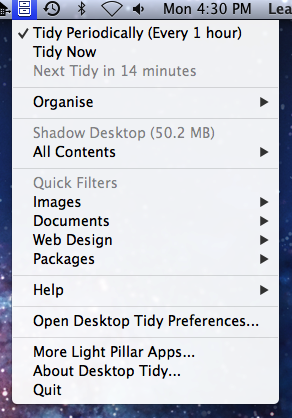
I like my desktop neat and tidy—not only does it look better, it keeps my iMac running more smoothly. I like it even more when things get cleaned up without my having to lift a finger, and Desktop Tidy (Mac App Store link) does just that. This handy utility tidies up your Mac’s desktop, keeping it free of clutter. It stores all the cleaned-up desktop files and folders in a hidden Shadow Desktop, which you can access from the menu bar or in the Finder.

Launch Desktop Tidy, and its icon sits in your menu bar while the utility quietly works its magic at scheduled intervals—as often as every minute or as infrequently as every seven days. It even organizes your desktop items by files type, which makes finding and renaming files easy.

If you find your desktop full of messy files before the next scheduled cleanup, you can choose the Tidy Now option from the systemwide menu. If you use the Growl notifications system, you can choose to have Growl notify you when Desktop Tidy performs tasks in the background.

I particularly like the Quick Filters feature, which can automatically group your file types based on similarities—I use the Images, Documents, Web Design, and Packages Quick Filters. Hovering over the Images filter, for example, shows all of the images that live in my Shadow Desktop, grouped by file type. (The app’s Preferences window shows which file types as assigned to each category.) Clicking on any item in the list opens the item.

If you put lots of stuff on your desktop, you’ll eventually find that your Shadow Desktop is getting pretty full. If, like me, you don’t always assign proper labels to things, the Shadow Desktop can be overwhelming to search through. Desktop Tidy can help here, too: The utility’s Organize settings let you hide older desktop items, where “older” is defined as anywhere between one day and one year. Also under Organize, you’ll find controls to bring files out of the Shadow Desktop and back to your visible desktop.

Desktop Tidy is a specialized tool, but I’ve found it to be a real organizational time-saver.


Wednesday, August 22, 2012

Closing arguments begin in Apple vs Samsung patent trial


Source: macworld.com


Closing arguments have begun in the high-profile patent-infringement case between Apple and Samsung.

The process, which is expected to occupy the court for the rest of Tuesday, began with Apple lawyer Harold McElhinny imploring the ten-person jury to look at the documents presented during the case in chronological order.

“Witnesses can be mistaken, exhibits for trial are always created for a purpose and can confuse and mislead, but historical documents are almost always where the truth lies,” McElhinny said.

During his 75-minute presentation, he reviewed some of the documents that Apple hopes will convince the jury that Samsung deliberately sought to produce what McElhinny called “iPhone knock-offs.”

They included an internal analysis by Samsung Semiconductor of the iPhone before it went on sale, design documents and mock-ups from computer-aided design systems and testimony from witnesses who spoke of similarities between phones from the two companies.

Apple alleges Samsung sold more than 22 million phones in the U.S. that violated the patents in question.

“Samsung makes fun of our damages claim. They make fun of us for asking for billions of dollars,” he said. “The damages should be large because the infringement is massive.”

Apple wants the jury to award it up to $2.75 billion for lost sales and profits as a result of the alleged infringement. If the jury decides the infringement was deliberate and willful, the judge hearing the case could triple the award.

Samsung lawyer Charles Verhoeven began his closing statement by targeting Apple’s design patent arguments. Apple failed to prove that any consumers had been confused by Samsung’s design.

“The reason they didn’t provide any evidence is because there is none,” he said. Apple is “asking you to prevent its biggest competitor from giving consumers what they want—smartphones with big screens.”

“The real reason Apple is bringing this case is because rather than compete in the marketplace, Apple is seeking a competitive edge in the courtroom.”

The closing arguments follow a morning during which the jury was read more than 100 pages of instructions for its deliberations, which are expected to begin on Wednesday morning.

The case, number 11-01846, pits plaintiff Apple against defendant Samsung in the U.S. District Court for the Northern District of California.

Updated at 3:20 p.m. PDT with additional information about the closing arguments.

[Martyn Williams covers mobile telecoms, Silicon Valley and general technology breaking news for The IDG News Service. Follow Martyn on Twitter at @martyn_williams. Martyn’s email address is martyn_williams@idg.com.]

Tuesday, August 14, 2012

Security in the iCloud age | Macworld


Source: macworld.com

Editor’s note: Mat Honan has posted a full account of how hackers gained access to his accounts and wiped out the data on his devices. Apple spokesperson Natalie Kerris told Macworld: “Apple takes customer privacy seriously and requires multiple forms of verification before resetting an Apple ID password. In this particular case, the customer’s data was compromised by a person who had acquired personal information about the customer. In addition, we found that our own internal policies were not followed completely. We are reviewing all of our processes for resetting account passwords to ensure our customers' data is protected.”

The future is now. Our devices are interconnected, and that linking where everything can access everything is wonderful. But it turns out there’s a dark side, too: All that connectivity makes it much easier for an attacker to compromise all our data, no matter where it is. Wired’s Mathew Honan learned this the hard way over the weekend, as a hacker not only gained access to his devices, but also wiped all the data from them causing a fair bit of mayhem along the way.
As Honan reported on his blog, he was hacked hard. And the attacker didn’t use complicated algorithms to brute force his way into Honan’s accounts. Instead, the hacker reportedly called up Apple’s technical support line, pretended to be Honan, and successfully provided answers to Honan’s self-selected security questions—the very ones Apple asks of all iCloud customers, to ensure that their accounts are secure. (We contacted Apple to confirm that account of events, but the company hasn’t responded.) [Update: Honan has said via Twitter that the hacker did not provide security question answers, but rather compromised the account in a different way.]
That’s a technique called “social engineering,” which takes advantage of what is often seen to be the weakest link in the security chain: other people. Even the most secure password in the world can be compromised if you can convince the person on the other end of a phone line that you’re the account holder in question.

Merely having his Twitter and Gmail accounts compromised, and the data on his iPad, iPhone, and Mac wiped out would be bad enough for Honan (who, we should note, is a former Macworld editor). What made matters worse in Honan’s case was the fact that he lacked any backups for more than a year’s worth of data.

The take-home lesson for the rest of us, then, is that our security is multi-faceted. There are many steps you can take to keep your data secure, and some important questions you might want to consider before you sign up for new services or add new devices.

Secure that password!


Any password can be compromised (especially given enough time or inclination). But a secure password is still your first line of defense. Using common data like a birthday or a child’s name can be guessed by anyone who has access to your Facebook profile. And yet, past password leaks have shown that many users still rely on inane passwords like ‘1234’ or even just the word ‘password.’ Those are in many cases as ineffective as having no password at all.
A good password has two important qualities. First, unlike the aforementioned passwords, it’s hard to guess, meaning that somebody has to either trick a person into revealing their password, or perform what’s called a brute-force attack—essentially, trying every possible password until they hit upon the correct one.


Second, a good password is easy to remember. That means that it’s something you can recall without writing it down—because, as soon as you have to write it down, it means that you’ve already compromised the security of that password. The best password is stored only in your head.


So, though you might be encouraged to create a password of random alphanumeric characters, like xdK92z!, it turns out that they’re not terribly secure, because they’re hard to remember, and relatively simple for a computer to crack. You can add a tremendous amount of complexity to your password with a technique that ends up keeping your password fairly simple to remember: Use a full sentence. This adds an order of magnitude of difficulty for a computer to guess your password through brute force, particularly since—despite thrilling movie scenes that show passwords hacked character by character—a hacker needs to determine your entire password in one go. With a password like “Six dogs ate schnitzel in a haberdashery,” instead of merely needing to pick one right word at random, or a relatively short series of jumbled characters, the algorithm would need to correctly guess seven unique words in tandem.


Even just a series of random words that you can connect with a mnemonic (such as “correcthorsebatterystaple”) is more secure than many randomized passwords.


Passwords are not recyclable—do not reuse


And as you’ve no doubt heard, you don’t want to use the same password at more than one site. Though there are software solutions—including OS X’s own built-in Keychain—that can help you keep track of multiple passwords, there’s an easy way to do so on your own, too: Keep your core password the same, and add special pre- and/or post-fixes based on the specific sites or services you’re using.

For example, you might decide to take the first and last letter of a site’s name and use them in combination with your password: “Six dogs ate schnitzel in a haberdashery” becomes “ANSix dogs ate schnitzel in a haberdashery” for Amazon, and “EYSix dogs ate schnitzel in a haberdashery” for eBay. That way, it becomes considerably more difficult for a hacker who gets access to your Amazon password to use that information to start bidding on auctions elsewhere. (The more complicated your pattern, of course, the better you’re protected.)

The security question question


Even if you follow all that password advice, though, it’s not enough to guarantee your security: Many attackers take a social engineering approach instead. Even the toughest password in the world could fall victim to a charming hacker who sweet-talks the agents on the line for customer support.

You’ve likely noticed a trend in recent years towards more, shall we say, creative security questions from certain websites. As “your mother’s maiden name” becomes overused, banks and other sites that value security have turned to increasingly esoteric questions: the city where you met your spouse, the first name of your oldest niece, or the street of the first place you lived. Some sites even provide the ability to make your own custom questions. Which can be helpful, up until two years later, when you suddenly can’t remember the answer to “Why we laughed all night on that Hawaiian vacation?”

In the past, hackers have even gained access to Sarah Palin and Paris Hilton’s inboxes by providing the necessary (and discoverable) answers via an online form—no extra human required. A good rule of thumb is: If someone can guess or Google for the answers to your security questions, they’re not very secure.

This puts customers in a tough spot. Your first instinct might be to use fake answers to your security questions, since in theory an intrepid searcher shouldn’t be able to guess those. But just as “xdK92z!” makes a lousy password, it’s a subpar security answer, too, because it’s yet another piece of data—in this case fictional—that you have to remember.

One option you could consider is using a pseudo-password alongside your security answers: If your Mom’s maiden name is Ellen, you might use “Ellen schnitzel haberdashery” instead; your eldest niece becomes “Claire schnitzel haberdashery.” Such a secure measure should at least give a theoretical support rep pause before agreeing to an imposter’s request to reset your password. Unfortunately, though, unless Apple overhauls its security policies—by implementing two-factor authentication, limiting under what circumstances or time frames it will allow a customer’s data to be reset, or both—your iCloud account is still only as safe as a support rep treats it.


Google, for example, offers two-factor authentication as an option. When you enable it, after you log in with your password, Google sends a code to your cell phone via text message. Only after you enter that code do you get logged in. That way, an attacker needs to figure out your password and steal your phone to break into your account, and we know most nerds don’t make good muggers.

Consider your options


Apple has been pushing iCloud hard with the release of Mountain Lion, and the company’s only likely to become more insistent over time. But as great as it is to have all your documents and other information available, no matter which device you’re on, it can lead to vulnerabilities, too.


For example, the Find My iPhone service not only allows you to locate your iPhones, iPads, and Macs—which could be a potential security risk if you don’t want people knowing where you are—but once you’ve logged into the service, you can also use it to remotely wipe data from those devices.

On the upside, you can use that service to prevent someone who’s stolen your physical device from gaining access to your data. On the other hand, if someone breaks into your account and remotely wipes your data, that means you’ll at the very least have to spend time restoring your devices. Far more catastrophic is the case where, as with Honan’s situation, you have out-of-date backups or no backups at all.

Of course, that’s not a reason not to use that feature, any more than worrying about sharks is a reason not to go swimming. But it’s worth considering the consequences of a service before you blithely sign up for it, and it’s definitely worth making sure that an account which has access to such capabilities is as secure as possible.


Back that disk up


It should go without saying that every user needs to have a current backup of the data on their electronic devices—preferably more than one. Data loss happens for a number of reasons, but that can include security violations. Having a remote online backup is valuable, just in case your house is flooded or catches on fire, but it’s unwise to put your only backup into the hands of an online service. Had Honan’s hacker been especially malicious, he could easily have deleted the iCloud Backups for Honan’s iOS devices.


We’ve written plenty about backing up, but the short short version is: Use Time Machine, sign up for a service like CrashPlan, or at the very least, save your most important data to Dropbox. Of course, no online service is bulletproof, so it’s always wise to keep at least one local copy of your data, just in case.


Don’t panic


What happened to Mat Honan was, in a word, awful. We don’t want that to happen to us, or you. But while an Apple support rep may be to blame for enabling Honan’s victimization, blame for the data loss—as Honan would no doubt agree—falls squarely on his shoulders.


Having good backups means never worrying about your data.


Couple that peace of mind with strong passwords, strong security answers, and careful consideration about the services you enable, and you needn’t feel fear each time you register for a new online service or save your files to the cloud.


Monday, August 13, 2012

iPhone 5 release date: Apple plans domination with iPad mini and iPhone 5 launch - Jacksonville Gadgets | Examiner.com


Source: Examiner.com

Credits:
http://www.macrumors.com
Apple's secrecy when presenting new products results in the internet being full of rumors and numerous speculations about the iPhone 5 release date. Right now we are in a pre-release period, and the net is buzzing with hypotheses. Most sources speak powerfully of three devices being released soon, the iPhone 5, a new iPod touch and an iPad mini all to be announced on Sept. 12. Samsung's Galaxy S3 is currently dominating smartphone sales, but Apple hopes the iPhone 5 release will change that.

iPhone 5

First of all, it is speculated that the next Apple phone will have an associated number. However, it could be called the 'new iPhone' like the last iPad presented by Apple is called 'the new iPad'. Apart from the change in nomenclature, the new iPhone will have a slightly larger screen: 4 inches, compared to 3.5 of the iPhone 4. There will also be a new connector (smaller than its predecessors), and the entry for headphones will be at the bottom of the device. Finally, the back of the iPhone 5 will be made mostly of metal (such as the iPad ) rather than glass. With the exception of these changes, the appearance of the iPhone 5 is expected to be the same as the iPhone 4S.
The source of some of this information is from photos posted on the website of the mobile repair company, ilab. It is assumed that this company has had access to many of the pieces that make up the new iPhone, and have assembled as if it were a model.

An ipad mini

Apple dominates the tablet market with an iron fist. Seven out of ten tablets that are sold around the world have the bitten apple logo on the back. According to the IDC, Apple holds 68% of the tablet market industry sales. Samsung comes after Apple with 9.6% market share and nearly 2.4 million tablets sold. Amazon is in third place with 5%, which equals 1.25 million devices sold. Asus and Acer are fourth and fifth, with less than a million tablets sold each and with 3.4% and 1.5% market share, respectively. Other brands have a 12.3% stake. But it seems that this is not enough for Tim Cook, and now he reportedly wants to release a small version of the iPad. This iPad mini will be 7 inches, which is significantly smaller than the regular iPad (9.56 inches). It is expected to have a lower price to compete against the Nexus 7, Kindle Fire and Microsoft's Surface tablet that will go on sale this fall.
However, the IDC notes that diversification of offers in the area of ​​tablets could strengthen Apple's dominant position, because customers may feel overwhelmed by the amount of options and choose the market leader.
..

Enhanced by Zemanta


Thursday, August 9, 2012

Up close with Mountain Lion: Power Nap | Macworld

Up close with Mountain Lion: Power Nap | Macworld
Up close with Mountain Lion: Power Naphere

Source: This is a summary of an article that appeared in macworld here.

More than a few Mac users worry that OS X is becoming too much like iOS, thanks to the former gaining features obviously inspired by the latter.
But even the most anti-iOS Mac user has to admit that sometimes this is a good thing.
Under Mountain Lion (OS X 10.8), if you've got a compatible Mac laptop, you'll get many of the same benefits thanks to a new feature called Power Nap.
Currently only the Mid 2012 MacBook Pro with Retina Display and the Mid 2011 and Mid 2012 MacBook Air models.
Each of these models requires a SMC firmware update (Mid 2011 Air, Mid 2012 Air, Mid 2012 Pro Retina) to support Power Nap.
In the Battery tab is an option, disabled by default, to Enable Power Nap While On Battery Power.
Once you configure those two Power Nap settings, you don't have to do anything for Power Nap to do its job, and your laptop sleeps normally whenever you close the lid or use the Apple Menu's Sleep command.
Note that your Mac's USB, Thunderbolt, and FireWire buses provide power during Power Nap wakes, so if you've enabled battery-power Power Nap and you want to ensure your Mac uses as little battery charge as possible, you should disconnect external devices---except for your Time Machine drive, of course---before putting your Mac to sleep.
Updates your calendars with any changes you've made on other devices or any new invitations you've received (hourly).
Apple says that Power Nap supports VPN on demand, letting your Mac perform these updates even if your company requires you to connect through its VPN.
(I wasn't able to test this feature.)
However, this option is restricted to VPN connections that authenticate using a certificate; Power Nap won't automatically connect to a VPN that requires you to enter a password when connecting.
Power Nap checks for Mac App Store app updates.
Backs up using Time Machine if your Time Machine drive is connected (hourly until a successful backup has been completed).
Checks for---and downloads, but doesn't install---new updates to Apple software and OS X (once per day).
Checks for updates to Mac App Store-purchased software (once per week).
Clicking Details opens the Mac App Store and displays the Updates screen---with available updates already listed, rather than making you wait for an update check.
Given that Power Nap does its thing while your Mac is asleep, and flash-storage Macs were already very good about waking up quickly and syncing many types of data silently in the background, you may be wondering if Power Nap is actually doing anything.
If you've got software updates waiting, the aforementioned notification is the most-obvious confirmation.
If you don't use Time Machine, or if your Time Machine drive wasn't connected, another approach is to check your Mac's logs.
As you can see, the Mac woke up with graphics disabled, connected to WiFi, tried to back up using Time Machine, scheduled the next wake, and then went to sleep.
(Not shown for space reasons are log events for email checks and calendar updates, as well as a bunch of more-technical stuff.)
[Dan Frakes is a Macworld senior editor.]
Enter it below and share it with other readers.
Everything you need to know about the new iPad.
Master the all the basics and more with these tips, tricks, and how-tos.

Concepts:

Mac, Mountain Lion, MacBook, app, Power Nap, updates, feature, time machine, wake, support, battery, sleep, Apple, connections, backup.


Tuesday, August 7, 2012

OS X Mountain Lion Operating System Review

Mountain Lion logoMountain Lion logo (Photo credit: Wikipedia)
Source: macworld.com

One year and one week since the release of OS X Lion, Apple is back with Mountain Lion, also known as OS X 10.8.

Like Lion, Mountain Lion offers numerous feature additions that will be familiar to iOS users. This OS X release continues Apple’s philosophy of bringing iOS features “back to the Mac,” and includes iMessage, Reminders, Notes, Notification Center, Twitter integration, Game Center, and AirPlay Mirroring. There are even a few features that are making their debut with Mountain Lion, and will find their way back into iOS 6 this fall.

As the first OS X release post-iCloud, Mountain Lion offers a much more thorough integration with Apple’s data-syncing service than Lion offered. Mountain Lion also brings options to limit which kinds of apps users can install, offers systemwide integration with social networking and media-sharing services, and gives some recent MacBook models the power to keep working even when they appear to be asleep. And although there are no actual mountain lions in China, OS X Mountain Lion does add a raft of features to speak to users in the country that’s Apple’s biggest growth opportunity.

At $20, Mountain Lion is Apple’s cheapest OS X upgrade since version 10.1 was free 11 years ago; like Lion, Mountain Lion is available only via a Mac App Store download. The combination of the low price and the easy download will likely make Mountain Lion the most quickly adopted OS X upgrade of all time. Given how solid a release I found Mountain Lion to be, that’s a good thing.

(A compatibility note: Some Macs now running Lion won’t be able to run Mountain Lion. For more details, read our Mountain Lion FAQ.)
Enhanced by Zemanta

Sunday, June 10, 2012

Little Apple: Rumors swirl of iPad mini

English: The "Made for iPod, iPhone, iPad...
English: The "Made for iPod, iPhone, iPad" emblem appearing on accessories approved by Apple Inc. for iPod, iPhone, and iPad. (Photo credit: Wikipedia)
SEOUL, SOUTH KOREA - NOVEMBER 28:  People part...

Is There a 4th Member of the Family Coming - iPad mini


Source: cbsnews.com


Rumours might abound. Rumours might abound of an "iPad mini"

But now, they're fed by media reports from South Korea, China, and Taiwan, saying Apple has ordered Samsung screens that are 7.86 inches measured on the diagonal. That would make for a screen about half the size of the current iPad, which has a diagonal measurement of 9.7 inches.
Apple iPad mini rumors resurface
Enhanced by Zemanta


Tuesday, March 27, 2012

Skirting auto-login in Lion

Skirting auto-login in Lion


macworld.com
by Christopher Breen

Reader Ross Anderson wishes to occasionally sidestep a startup preference setting. He writes:
I’ve configured my Mac running OS X Lion to automatically login to a particular user account. But there are times when I want to instead login to a different account. Is there some way to do that?
To give our readers some context, you can configure your Mac so that it automatically logs into a particular account. To do that, launch System Preferences, select the Security & Privacy preference, click the Lock icon and enter your administrator’s name and password to unlock the preference, and in the General tab make sure the Disable Automatic Login option is unchecked.

If you're currently logged into an account, the easiest way to get to the login screen is to choose Log Out accountname from the Apple menu (where accountname is the name of the account you’re currently logged into). Confirm that you want to do this by clicking on the Log Out button that appears in the resulting window. You’ll be logged out of that account and taken to the login screen where you can choose to log in to a different account.
If you simply want to work in another account without logging out of another, it’s easy. Go to the Users & Groups system preference, unlock that preference in the same way as you did with Security & Privacy, click Login Options at the bottom of the list of users, and in the area to the right be sure that Show Fast User Switching Menu As is enabled. Now when you want to switch accounts, just choose an account name from the menu bar and you’ll be prompted for that account’s password. Enter it and you’ll switch to that account.
Getting to the login screen when starting your Mac is a tougher proposition. If you press and hold the Shift key at startup before you hear the startup chime you’ll eventually be presented with the login screen, but you’ll do so via Safe Boot mode. Not only does it take a couple of extra minutes to start up your Mac (because, as part of the Safe Boot process, the Mac attempts to repair any problems it can find), but after you finally log into the account you want, you’ll find that your login items have been disabled (hence the “Safe” part of “Safe Boot”).
In the old days you could hold Shift after the Apple logo appeared to skirt auto login. I’ve tried that on my MacBook Pro running the latest version of Lion and it doesn’t work.
Because this is a less than ideal way to go about the problem, I’d suggest planning ahead when you can. If you know that you’ll want to boot into a different account after your next shutdown, return to the Security & Privacy system preference and enable that Disable Automatic Login option. When you next boot or restart your Mac, you’ll be taken to the login screen.

Similar Articles


Monday, November 14, 2011

Amazon launches Kindle integration with public libraries

Cover of "Kindle Wireless Reading Device,...Cover via Amazon

Amazon launches Kindle integration with public libraries


Source: macworld.com


Amazon on Wednesday announced the launch of its previously-promised Kindle library lending, which will allow Kindle and Kindle app users alike to borrow ebooks from 11,000 local libraries in the United States.
Kindle book borrowers can use all the features they’re accustomed to when reading Kindle Store-purchased books: notes, highlights, bookmarks, real page numbers, Facebook and Twitter integration, and Whispersync, which syncs your current page across any Kindle device or app you use.
To borrow Kindle books, you must visit your local library’s website. As Amazon notes, the service is only available if your library uses OverDrive’s digital offering. Once you’ve logged into your library’s website, you click Get for Kindle, sign into your Amazon account, and the book gets delivered to your Kindle (or Kindle app) wirelessly or over USB.
At least, that’s the theory. My own local library uses OverDrive, but at this writing, no Get for Kindle button was available. Amazon spokesperson Kinley Campbell told Macworld, “OverDrive is rolling out [Kindle integration] to the majority of their libraries today, and the rest in the next couple of days.” So if you don’t see the Kindle button yet, check again soon.
If you later purchase a book that you’ve previously borrowed, any notes or highlights you made while the book was on loan come along for the ride.
Borrowed Kindle books can be read using hardware Kindle readers, along with the iPhone or iPad apps, Kindle Cloud Reader, or apps for other devices.
Enhanced by Zemanta


Wednesday, November 2, 2011

iCloud could potentially do wonders for sync


Source: macworld.com

Cross-Device Productivity

By now we have heard all sorts of things about iCloud.
But the thing I am most interested in is how it will help me access documents that I am working with or need access to across my devices from my laptop to iPad to iPhone and my iMac at home.
I'm much more interested in how the service could theoretically improve my cross-device productivity.
Right now, iPad file management requires a combination of several kludgey methods.
Search the Web - including this very site - and you'll find plenty about the awesomeness of Dropbox, but not every iOS app supports it (including any of Apple's). The apps that do support Dropbox each rely upon their own implementation.
All this is true of Apple's own iDisk, too, except that we haven't spent much ink extolling that service's virtues.
(I don't use iDisk anymore. I found it slow and occasionally hungry for eating up my files.)
But if iCloud means we can stop relying on sending files between apps, we'll be thrilled.
Thus, my wish for iCloud is that it includes Dropbox-esque live document sharing and synchronization between Macs and iOS devices.
I want it to be built in such a way that developers can include it in their apps as easily as they can embed an Open dialog box (on the Mac) or call up the virtual keyboard (on iOS).
All the work - the syncing, the interface itself - should fall under Apple's purview, so that the experience is constant and equally available to all developers.
As I imagine it, I could create a document in Pages on my Mac and save it to iCloud.
When I go to my iPad, I can open the same document there from iCloud within the mobile Pages app.
And as with Google Docs, if I leave the document open on multiple devices at the same time, each of them automatically updates on-the-fly to remain current with whichever version I'm actually editing at that moment.
If iCloud merely simplifies that process with Dropbox-style syncing that's baked into the core of both Lion and iOS 5, I'll be on cloud nine.
But if Apple wants to send my joyousness levels into the stratosphere - and really, why wouldn't the company share that goal? - the process of saving files to and from iCloud will be seamless and nearly invisible.
Though I love Google Calendar, I prefer iCal overall, and iCal's Google Calendar support is weak.


Tuesday, November 1, 2011

Steve Jobs: Making a dent in the universe | Computers | Mac Word | Macworld

Steve Jobs: Making a dent in the universe


Tuesday, October 11, 2011

Steve Jobs Dead at 56

Steve Jobs Dead at 56


Source: http://www.abc.net.au/news/2011-10-06/hold-hold-steve-jobs-dead/3317496?section=business#comments
A mighty man!
Silicon Valley pioneer and Apple co-founder Steve Jobs has died after a seven-year battle with pancreatic cancer.

Silicon Valley pioneer and Apple co-founder Steve Jobs has died after a seven-year battle with pancreatic cancer.

The 56-year-old was diagnosed with a cancerous tumour in his pancreas in 2004 and had been on medical leave for an undisclosed condition since January 17.

"Apple has lost a visionary and creative genius, and the world has lost an amazing human being," a statement on Apple's website reads.

"Those of us who have been fortunate enough to know and work with Steve have lost a dear friend and an inspiring mentor."

Mr Jobs recently stepped down as chief executive of the company which he co-founded in a garage when he was 21.


Check out his speech to Stanford Graduates to remember why he he was so great at communication. www.youtube.com


Saturday, September 24, 2011

Steve Jobs resigns as Apple CEO | Computers

Steve Jobs resigns as Apple CEO Computers

Tim Cook named as new CEO; Jobs elected Chairman of the Board


Source: macworld.com


After 14 years as Apple's CEO, Steve Jobs resigned his post on Wednesday and was replaced by Tim Cook, who previously was the company's Chief Operating Officer. Jobs, in turn, was elected as chairman of Apple's board of directors.
"I have always said if there ever came a day when I could no longer meet my duties and expectations as Apple’s CEO, I would be the first to let you know. Unfortunately, that day has come," Jobs said in a letter addressed "to the Apple Board of Directors and the Apple Community."
"I believe Apple’s brightest and most innovative days are ahead of it. And I look forward to watching and contributing to its success in a new role," Jobs wrote. "I have made some of the best friends of my life at Apple, and I thank you all for the many years of being able to work alongside you."
"In his new role as Chairman of the Board, Steve will continue to serve Apple with his unique insights, creativity and inspiration," board member and Genentech chairman Art Levinson said in an Apple press release. “Steve’s extraordinary vision and leadership saved Apple and guided it to its position as the world’s most innovative and valuable technology company. Steve has made countless contributions to Apple’s success, and he has attracted and inspired Apple’s immensely creative employees and world class executive team."
Jobs had been on a medical leave of absence since January 2011. He continued to hold the CEO title while Cook oversaw the day-to-day operations of the company. At the time, Jobs told Apple employees he was taking a leave from his day-to-day duties to “focus on my health.”
“I’m obviously concerned for Steve,” analyst Tim Bajarin of Creative Strategies told Macworld. “It’s logical to believe that something’s related to his health.” Bajarin was quick to point out, however, that “he’s still chairman... he’s saying he can’t handle the role of CEO.”
“While I am concerned about Steve personally, I am not concerned about Apple,” Bajarin said. “You’ve got a very deep bench of managers and executives who know how Jobs thinks, feels, and his vision.”
Gartner analyst Michael Gartenberg echoed those sentiments, noting that “while this marks the end of an era for Apple, it’s important to remember the there’s more to Apple than any one person, even Steve Jobs. Continuing as chairman Mr. Jobs will continue to leave his mark on both the company and products even as he transfers the reigns to Mr. Cook.”
Jobs is "an icon and what he's done with Apple is something probably unprecedented in business," said IDC analyst Al Hilwa. "It will be a case study in business school books for decades."
Jobs had previously taken a six-month leave of absence from Apple in 2009, ultimately undergoing a liver transplant. He had also battled pancreatic cancer in 2004.
Despite his leave of absence from the company, Jobs had remained involved with Apple’s long-term efforts. He appeared atJune’s Worldwide Developers Conference keynote, handling presentation duties for the section on Apple’s upcoming iCloud service. Jobs also made a surprise appearance at Apple’s iPad 2 press event in March.

Two stints at Apple

Jobs co-founded Apple in 1976, along with Steve Wozniak and Ron Wayne. With Wozniak, he helped develop the Apple I and Apple II, and, in 1984, introduced the Macintosh to the world. However, he clashed with the company’s CEO, John Sculley, in 1985 and left to found a new company, Next Computer. He also acquired animation company Pixar from filmmaker George Lucas in 1986, later selling it to Disney and becoming a member of the media conglomerate’s board of directors, as well as its largest individual shareholder.
In 1997, Apple acquired Next and Jobs returned to the company to take up the CEO mantle. While Jobs initially served in an interim CEO capacity, replacing ousted chief executive Gil Amelio, he moved into the top role for good in 2000.
During his time at the helm, Apple released a number of groundbreaking products, including the iPod in 2001, the iPhone in 2007, and the iPad in 2010. Jobs also presided over a revitalization of the company’s Mac line: Apple introduced its iMac desktop computer in 1998, shortly after his return. Jobs’s return also heralded the end of a pair of prominent but controversial projects, including the licensing of the Mac OS to third-party hardware companies, and the Newton personal digital assistant.
Among Jobs’s other accomplishments as CEO were the launch of the iTunes Music Store in 2003, which went on to become the top music retailer in the U.S. The store, combined with the iconic iPod, popularized the selling of digital music, and later expanded its content to include movies, television shows, podcasts, audiobooks, ebooks, and, of course, apps for Apple’s mobile iOS platform.
Over the course of his tenure, Apple saw unprecedented success, rising from the edge of its demise to become, by some measurements, the most valuable company in the world. That hasn’t always meant popular actions—when Jobs returned in 1997, it was with an influx of $150 million from Microsoft, then considered the company’s arch-rival. But a decade later, the company had become hugely profitable and, as of its most recent financial statements, now sits on a cash reserve of more than $76 billion.

Full text of Jobs's letter

To the Apple Board of Directors and the Apple Community:
I have always said if there ever came a day when I could no longer meet my duties and expectations as Apple’s CEO, I would be the first to let you know. Unfortunately, that day has come.
I hereby resign as CEO of Apple. I would like to serve, if the Board sees fit, as Chairman of the Board, director and Apple employee.
As far as my successor goes, I strongly recommend that we execute our succession plan and name Tim Cook as CEO of Apple.
I believe Apple’s brightest and most innovative days are ahead of it. And I look forward to watching and contributing to its success in a new role.
I have made some of the best friends of my life at Apple, and I thank you all for the many years of being able to work alongside you.
Steve